crmSeries Pro
crmSeries Pro is the latest mobile application from crmSeries. crmSeries Pro is the foundation for many modules to come and extend the versatility of crmSeries to the mobile user.
Home
When logging into crmSeries Pro, a dashboard listing a rep’s top activities will be shown. Selecting  will open the Home Dashboard and list a few of the Open Activities. Select the View All link on the right of each Activity Type will list All Open Activities.

The types of activities listed on the Home dashboard are:
- Pending Inspections
- Open Activities
- Open Opportunities
Selecting the View All link will open a View listing all related activities.
Settings
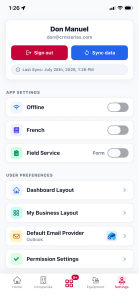
Under the Settings option the following type functions are available.
- Sign Out: Log out of crmSeries Pro.
- Sync Data: Manually sync data from the crmSeries server. The last Sync date and time will be displayed.
- French: Select to convert crmSeries Pro from English to Canadian French.
- Field Service:
- Inspection (Default): When completing a PM/Field Service, automatically open a field service inspection.
- Form: Complete a PM/Field Service using a crmSeries Pro form.
- Contact Support: Access a crmSeries online support form.
- Report Bug: Report any crmSeries Pro issues you encounter.
- Request Feature: Let us know if you have any ideas that will provide value to you and your peers.
- Undercarriage Form: Access the crmSeries AI form for easily completing an undercarriage inspection.
- Privacy Policy: Access the crmSeries Privacy Policy.
Dashboard
Select the Main Dashboard  option to open additional dashboards. The dashboards currently available are:
- Inspections: List Trade and Walk Around Inspections
- Draft: Inspections held on the user’s device
- My Recent: Inspection entered within 30, 60, and 90 Days
- Undercarriage: Lists undercarriage inspections
- Draft: Undercarriage Inspection held on the user’s device.
- My Recent: Undercarriage Inspections entered within 30, 60, and 90 Days
- Contacts: Ability to Search and List Contacts
- Activities: List of Open Activities
- Opportunities: List of Open Opportunities
- Services: List of Open PM/Field Services
- Sales Quotes: List of Open Sales Quotes and the Ability to Submit a Customer Decision
- Sales Quote Requests: List of requests for sales administration to create a sales quote on the user’s behalf.
- Sales Dashboard: Rollup of open opportunities focused on a sales rep’s territory.
- Trade Valuations: Open trade valuations created within 30, 60, and 90 Days.
- DODGE: Lists of DODGE Construction Network projects. crmSeries is not affiliated with DODGE and Requires a DODGE agreement.
- Inventory Search: Search current Dealer Inventory
- Product Support: Dashboard rollup of open Product Support Opportunities.
- Vehicles: List of Assigned Company Vehicles including the ability to complete a Vehicle Inspection
- Map: Map of Companies and Equipment within a close proximity of your current Location
- Notes: List of notes with the ability to filter by date range.
- Leads: List of Leads for the logged in user.
- Rental / Demo: List of open rental and demo requests for a user.
- Notifications: List to manage open Notifications.
- Rental Rates: Current Dealer Rental Rates with the ability to generate a quick rental quote.

Companies
Selecting the Companies  menu option will open a company search form. A rep’s assigned accounts will automatically appear in the company search list by default.

Searching Companies
To search for company records, type a portion of the company name in the search box at the top of the company search form. Company records that include the search entry will be listed. Also, selecting the Star  in the company search box will list all company records that the rep has marked as Favorite.
Selecting the Map Teardrop  will open a list of companies that are in your vicinity.
Adding a Prospect
Selecting the Add  button at the lower right of the Company Search will open a form for adding a prospect.

Field labels in Red are Required. Enter the prospect information and press the Save Changes button. Press the Cancel button to cancel the new prospect entry.
Opening a Company Record
Select a company record from the company search list will open the company with the Related tab selected. At the top of the company record, actions can be initiated based on the availability to data.
As an example, If the company has a valid phone number, the phone  button will show. Selecting the phone button will open the phone dialer. After completing a call, a prompt will appear asking the rep is they would like to create a note based on the call. If the company has a valid address, the navigate
  button will show. Selecting the navigation button will open the default map on the device. And, if the company record has a valid web site, selecting the Web
  button will open the company web page in the default browser.
Select the crmSeries Pro AI icon  to open the AI Account or Equipment insight.

crmSeries Pro Machine Learning
Selecting the AI icon  will open the panel for generating an overview of the current account or equipment population for the account.
- Account (In-depth Summary): Invokes a deeper dive into the account based on the logged in user’s role. As an example, a Product Support type role will focus on opportunities specific to that role.
- Account (Faster Summary): a quicker overview of an account providing insight based on the logged in user’s role.
- Equipment (In-depth Summary): invokes a deeper machine learning model focused on the current account equipment population and takes into consideration the current logged in user’s role.
- Equipment (Faster Summary): provides a quick overview of the opportunities based on the account machine population and user role.

Under the Company Related tab are records associated with the specific company. The related company records are:
- Contacts
- Equipment
- Notes
- Tasks
- Addresses
- Opportunities
- Assigned Reps
- Rental – Demo
- Leads
- Sales Quote Requests
Assigned Reps
To view a list of reps assigned to an account, select the Assigned Reps icon.
Tip: Sliding a rep to the right will provide a simple method to send a text or email about the account to the rep. When completed, you will receive a prompt asking if you would like to make a note about the action just completed.

Rental – Demo (Inventory Request)
The Inventory Request module lists inventory that is out on demo, loan, and rent for the account.
Tip: Selecting the Plus icon provides the ability to add a new demo, loan, or rental.

Contacts
Selecting the Contacts tab under the Company Related tab, opens the contacts associated with a company.

Add a New Contact
Select the at the bottom right of the Contact List to open a New Contact form.

The fields in Red are required. Enter the Contact information and press the Save Changes button. NOTE: When all required information has been entered, the Save Changes button will turn blue.
Contacts can also be accessed by selecting the Contacts Panel  from the Main Dashboard .
Entering a contact name in the Search textbox will filter the contact related to a company. Selecting a Contact in the list will open the contact in view mode with the Contact Related tab selected.
Editing a Contact
Under the Contact About tab, selecting the  button will open the Contact record in edit mode.

Make the necessary modification to the Contact record and select the Save Changes button.

Contact Actions
At the top of the contact record, actions can be initiated based on the availability of data. As an example, If the contact has a valid phone number, the phone button will show. Selecting the phone icon will open the phone dialer. After completing a call, a prompt will appear asking if the rep would like to create a note based on the call. Also, if the contact has a valid mobile number, the SMS  button will show. Selecting the SMS icon will open the device text messaging application. If the contact has a valid email, selecting the Email
  button will open the default email application. After each action, the user will be prompted asking if they would like to create a note based on the action just completed.

Contact Notes
Selecting the Note panel under the Contact Related tab, will open a note list associated with the current contact.

Selecting a Note in the list will open the Note in view mode.

Edit a Note
Select the Edit button to modify a Note. This will open the Note in edit mode. Make the necessary modifications to the Note and select the Save Changes button. NOTE: The Save Changes button will be Blue ONLY IF ALL Required fields have been entered.
Adding a Note
Select the button at the lower right of the Note list to add a new Note. NOTE: Notes can be added for Company, Contact, and Equipment records.

The fields in Red are required. Enter the relevant note information and press the Create Note button. NOTE: When all required information has been entered, the Create Note button will turn blue. Selecting the Follow-up Task  option prior to saving the Note will open a New Task entry form after saving the note.
Contact Tasks
Selecting the Task panel under the Contact Related tab, will open a task list associated with the current contact.

Selecting a Task in the list will open the Task in view mode.

Select the Edit button to modify a Task. This will open the Task in edit mode. Make the necessary modifications to the Task and select the Save Changes button. NOTE: The Save Changes button will be Blue ONLY IF ALL Required fields have been entered. Selecting the Follow-up Note  option will automatically open a new Note after saving the Task

Equipment
Selecting the Equipment tab under the Company Related tab, opens the Equipment associated with a company.

Add Equipment
Select the at the bottom right of the Equipment List will open the New Equipment form.

The fields in Red are required. Enter the Equipment information and press the Save Changes button. NOTE: When all required information has been entered, the Save Changes button will turn blue.
Edit Equipment
Selecting a Machine in the list will open the Machine in view mode with the related tab selected. To edit the equipment record, select the About tab. Select the Edit button to modify an Equipment record.

Equipment Related Records
Select the Related tab on the Equipment record to view a list of associated records. Associated records include:
- Undercarriage
- Inspections
- Notes
- Task

Undercarriage
Selecting the Undercarriage panel under the Equipment Related tab will open an Undercarriage Inspection list associated with the machine.

New Undercarriage Measurement
Select the button at the lower right of the Undercarriage list to add a new Undercarriage Inspection.

The buttons at the top of the Undercarriage Inspection form provides additional functions to simplify the task of inspecting an undercarriage.
 NOTE: When a crmSeries Ultrasonic meter is on and near the crmSeries Pro mobile app, the meter will automatically connect to the Undercarriage Inspection.
 Indicates (When the image is Blue) that a crmSeries UC Inspection form is attached. A blank crmSeries UC Inspection form can be downloaded under Settings. NOTE: Selecting the image, allow a user to assign general images to the Undercarriage Inspection.
 Select to open the crmSeries AI function to read a completed crmSeries UC Inspection form. NOTE: A crmSeries UC Inspection form can be printed from crmSeries PRO by selecting Settings, Undercarriage Form.
 Select to Submit the Undercarriage Inspection.
The first Undercarriage Inspection for a machine will require selecting a Wear Profile. Future Undercarriage Inspections for the machine will not require selecting a profile. A Wear Profile is used to assign the undercarriage minimum and maximum component specs for a specific machine model. To assign a Wear Profile to a Machine, Tap the Wear Profile label and enter the machine model into the textbox. From the available Wear Profile list, select the appropriate profile.


The Undercarriage Inspection date will automatically be selected. Select the calendar icon to change the Inspection date. The Undercarriage Inspection hours are required and can be entered by tapping in the hours box.
The Undercarriage Inspection is segmented by left and right component groups and includes an Additional Details section. The Additional Details section is not required however provides some insight into the machine’s overall definition. Each component group can be accessed by scrolling up and down and selecting the left and right buttons. NOTE: If the Additional Details for a prior machine undercarriage inspection were selected, the Additional Details will default to the last inspection.

Scroll to a component that requires measuring and select the proper Side, Option, and Method (Tool) used to measure the component. Once the Option and Method has been selected, the measurement is entered into the Measurement box. Upon entering the component measurement, the percent wear is calculated. To assist the crmSeries user, the New and Max component specs are shown and if a prior measurement was entered for the machine, the previous measurement and wear percent are shown. NOTE: If the component has a prior measurement, the Option and Method will be pre-selected based on the prior selections.

For each component, the buttons are used for the purposes shown below.
 Associate an image with a component using the device’s camera.
 Associate a video clip with a component. NOTE: Maximum video length is 10 seconds.
 Associate an image with a component from the device’s camera roll.
 Enter a comment about a component.
After entering all the required measurements and associating media and comments, the undercarriage inspection can be submitted by selecting the button.
crmSeries Ultrasonic Meter (Part #: CH18-BLE4)
When a crmSeries Ultrasonic Meter is turned on and within Bluetooth range (approximately 10 Feet (3 Meters)) of the crmSeries Pro mobile app, it will automatically connect.
Select the Component Option and select Ultrasonic as the Method.

Selecting the Get Reader Value button will capture the wear measurement from the crmSeries Ultrasonic Meter and calculate the wear percent of the component.

Select Capture Current Value button to finalize the measurement value for the component. NOTE: As the value from the crmSeries Ultrasonic Meter changes, the value will be reflected for the component selected. Select the Capture Current Value button to end the current component reading session.
crmSeries TR Tool (Part #: VSM-001-TRT)
Some of the undercarriage components are difficult if not impossible to accurately measure the amount of wear. One such set of components that have been neglected are the lower track rollers when protected by track roller guards or sometimes referred to as rock guards.
Follow the steps below to use the crmSeries TR Tool and simplify the process of measuring the Lower Track Rollers with rock guards.
- Measure the undercarriage Link Height using a crmSeries Depth Gauge (Part #: VSM-001-TBT) and enter the value in the crmSeries Pro.


- Place the crmSeries TR Tool on the Lower Track Roller. If the Lower Track Roller has a dimple in the center, the flat side of the TR Tool should be used. If the Lower Track Roller has a bolt head exposed, the indented side of the TR Tool should be used. The TR Tool includes two sizes, and the proper TR Tool should be used based on the bolt head size. Measure from the TR Tool point tip to the top of the Track Shoe. This measurement will be entered into the crmSeries Pro app in step 4 below. NOTE: The Tracks must be on Level Ground prior to measuring.

- Select TR as the Method for the Lower Track Roller. NOTE: If TR is not an option in the method list, verify that the Link Height was measured using a Depth Gauge first.

- Enter the measurement from Step 2 above and select the Calculate Caliper Measurement button. NOTE: Selecting the Calculate Caliper Measurement button will convert the measurement into a caliper measurement and automatically change the Method to Caliper.


Sharing an Undercarriage Inspection
From the Undercarriage list (Under the Equipment, Related tab, Undercarriage Panel), sliding an undercarriage inspection to the right will open a Share button. Select the share button to send the undercarriage inspection using the devices email and text messaging applications.

Undercarriage Dashboard
Undercarriage inspections in Draft mode are located under the Undercarriage panel. The Inspection panel is accessed by selecting Main Dashboard button then selecting the  button. Draft undercarriage inspection can also be accessed under the Undercarriage list by selecting the undercarriage panel from the Equipment Related tab.

Product Support Dashboard
The Product Support Dashboard provides a parts and service rep with a list of system generated opportunities. The type of opportunities may include undercarriage components coming due, warranty expirations, inspections with include critical responses, severe fluid samples, and more.
The Product Support Dashboard is accessed by selecting the My Business button and then selecting the  button. This will open the Product Support opportunity list. Swiping an opportunity left will allow the rep to schedule a task associated with the opportunity.

The opportunities within the Product Support Dashboard can be filtered by selecting the Filter button in the upper right. Select the Done button to filter once you have selected the filter options. Selecting the Clear button will clear the filter results.

New Inspection
The walkaround and trade inspections can be designed by a crmSeries administrator. Inspections can be initiated using crmSeries PRO. Currently, inspections are associated with base machines, attachments, and dealer vehicles. To create a machine or attachment inspection follow the steps below.
Select the  Equipment menu option and search for the machine or attachment that is needing to be inspected. In the Search box enter a portion of the serial number and select the machine from the equipment list.

From the Equipment record, select the Inspection panel.
Select the button at the lower right of the Inspection list to add a new Inspection.

Select the type of inspection to be created. NOTE: The inspection types are created by the crmSeries administrator.

NOTE: If more than one inspection is available for an inspection type, the specific inspection must be selected. If only one inspection is available for an inspection type, the inspection will open.

Enter the current hours of the machine in the hours box. The Hours is a required field. NOTE: The hour box will not show for attachments.
The Rep will default to the logged in user and can be changed by selecting another rep in the list. Also, if you would like to associate the inspection to a contact associated with the machine, select a contact from the contact list. NOTE: Only contacts that are associated with the company that owns the machine will be listed.
NOTE: The inspection status will remain as Draft until it is uploaded.

Select the  Submit button to upload the inspection. The rep will be presented with an option to place the inspection on Hold. Selecting the Submit on Hold option will allow the rep to complete the inspection on the crmSeries web application at a later time. NOTE: Inspections placed on-Hold inspection can be selected from the Inspection list and edited.
Select the Submit button.

Inspection Dashboard
Inspections in Draft mode are located under the Inspection panel. The Inspection panel is accessed by selecting Main Dashboard button, then selecting the  button.
Delete Inspection
Any Undercarriage Inspection or General Inspection in Draft mode can be deleted. From the Inspection Dashboard, slide the Inspection to the left and select the Delete option.

At the prompt, select the option to Delete. Select Cancel to NOT Delete.

Sales Quotes
Equipment Sales Quotes can be accessed under My Business , Sales Quote  button or under a Company Related tab.
Sales Quote Customer Decision
The process of closing a sales process using crmSeries Pro is very simple. From the Sales Quote List under My Business, select the sales quote to close.

Select the Customer Decision Button.

Verify the Equipment List and Select Continue Button.

Select a Decision option from the list.

Enter the information in the Customer Decision form and select Save Changes button.

Undo Customer Decision
A Customer Decision can be reversed by selecting a sales quote from the Sales Quote List and selecting the My All option.

Select the Undo Decision Button to reverse a customer decision.

Lost Sales
A Lost Sale can be entered by selecting the Opportunity panel under the Company Related tab.

Select the Plus Button to add a new Lost Sales.
Select a Status. NOTE: The Lost Sales Status List can vary based on the options entered into crmSeries by the System Administrator.

Enter the values on the Lost Sales form and select the Save Changes button.

Activity Dashboard
The Open Activity panel is accessed by selecting Main Dashboard menu option, then selecting the  button.

Completing an Open Activity
The simplest method to complete an open activity is to slide the activity in the list to the left and select the Green Complete button.

Opportunity Dashboard
The Open Opportunity panel is accessed by selecting Main Dashboard menu option, then selecting the  button.

New Opportunity
Select the button at the lower right of the Opportunity list to add a new Opportunity. Select the Company box and search for the company the opportunity is associated with, then select the Status of the Opportunity.

Enter all the required Opportunity Information. The fields in Red are required and the Save Changes button will turn Blue when all required fields have been entered.

Lead Management
The crmSeries platform allows integration of leads from external sources such as your company website or leads can be entered directly into crmSeries. Once a lead is inserted into crmSeries the assigned rep will receive a crmSeries Pro notification.
Select the My Business icon then select the Lead panel  to list your assigned leads.

Select the Add New icon to add a new lead.
Tip: New leads can also be added for a specific company by selecting the lead button under a company related tab.
Slide a lead to the left to enter a quick note related to the lead.
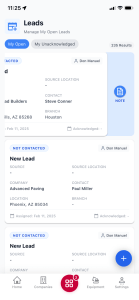
Tapping a Lead in the list will open the lead in view model. Selecting the Edit Pencil will open the lead in edit mode. Make any modifications then select the Save Changes button.

Leads assigned to a company, can also be viewed under the company related tab.

Select the Lead button to open the leads related to the company.

Selecting the Add New button will create a new lead associated with the company.